
GanttPRO MCP connects your projects to the AI assistant you already use. Setup takes a couple of minutes, and MCP is available on all GanttPRO plans, including the free trial.
Note: If you use Claude Team or Enterprise, an organization owner has to add the GanttPRO connector first. After that, members can connect it themselves.
Connect to Claude
Connect from GanttPRO:
In GanttPRO, open Account settings and then open MCP tab;
Click Connect button to open Claude;
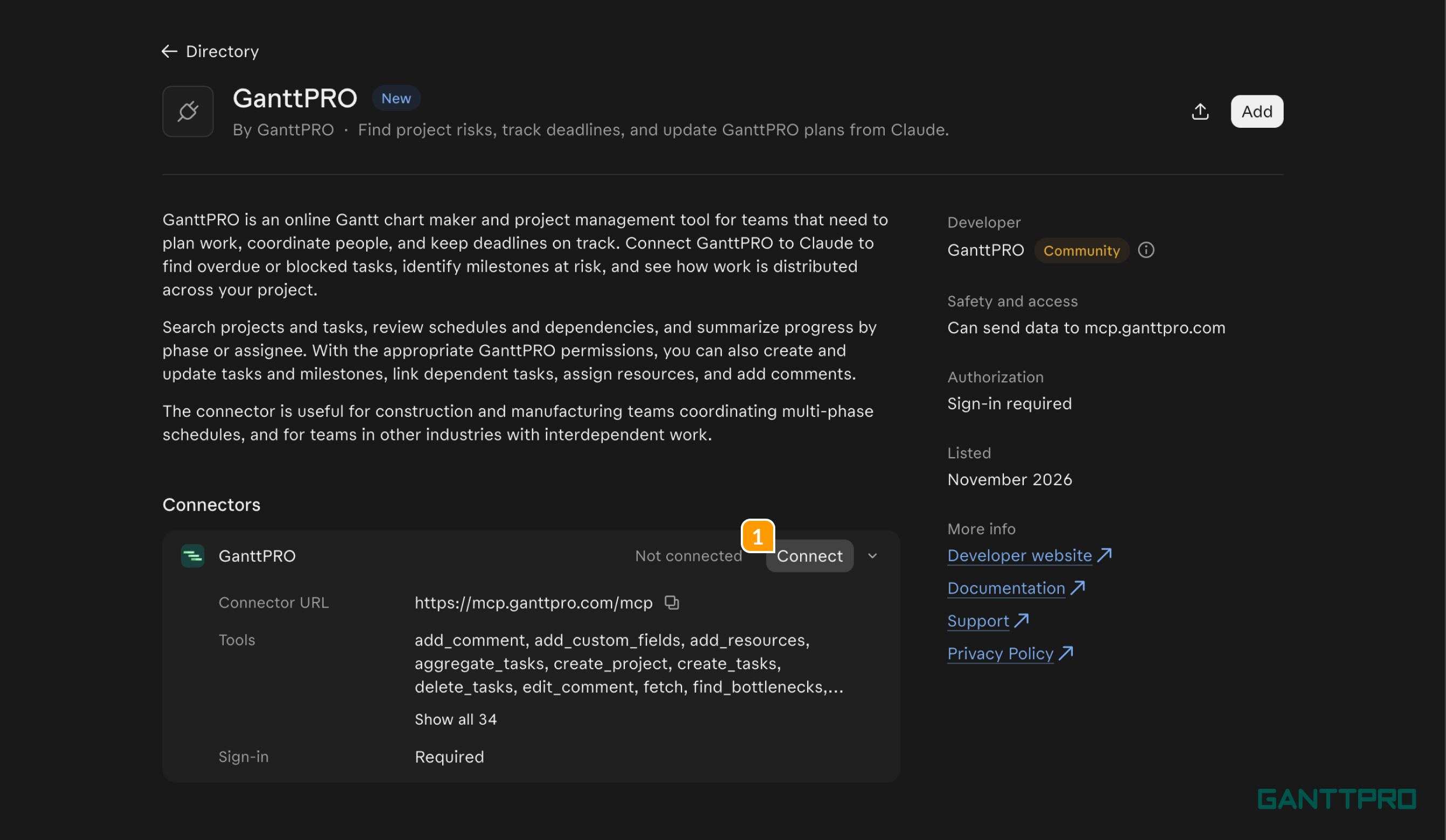
Click Connect 1 in Claude settings.
Connect from Calude:
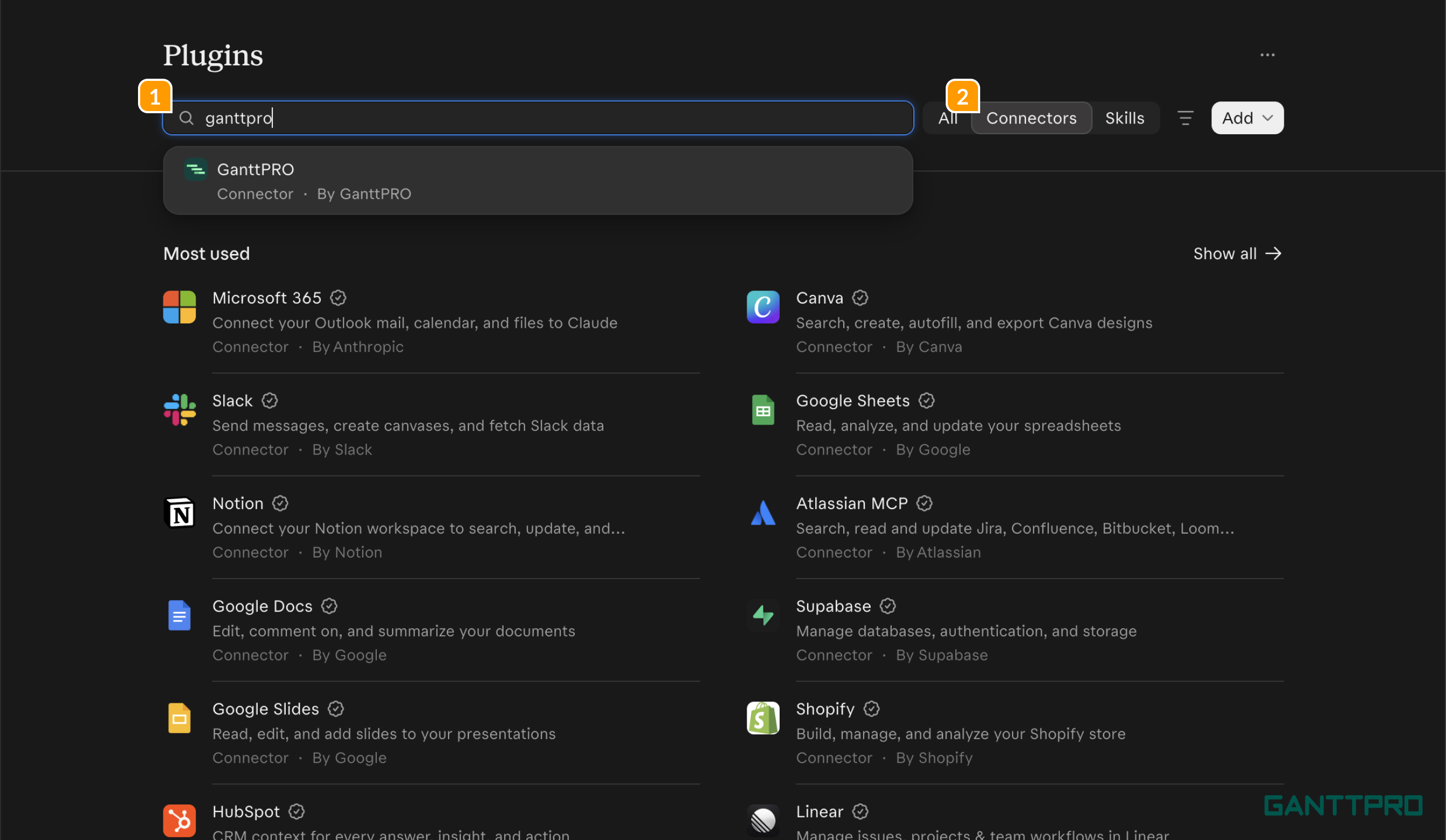
In Claude, open Plugins 1, then open Connectors 2;
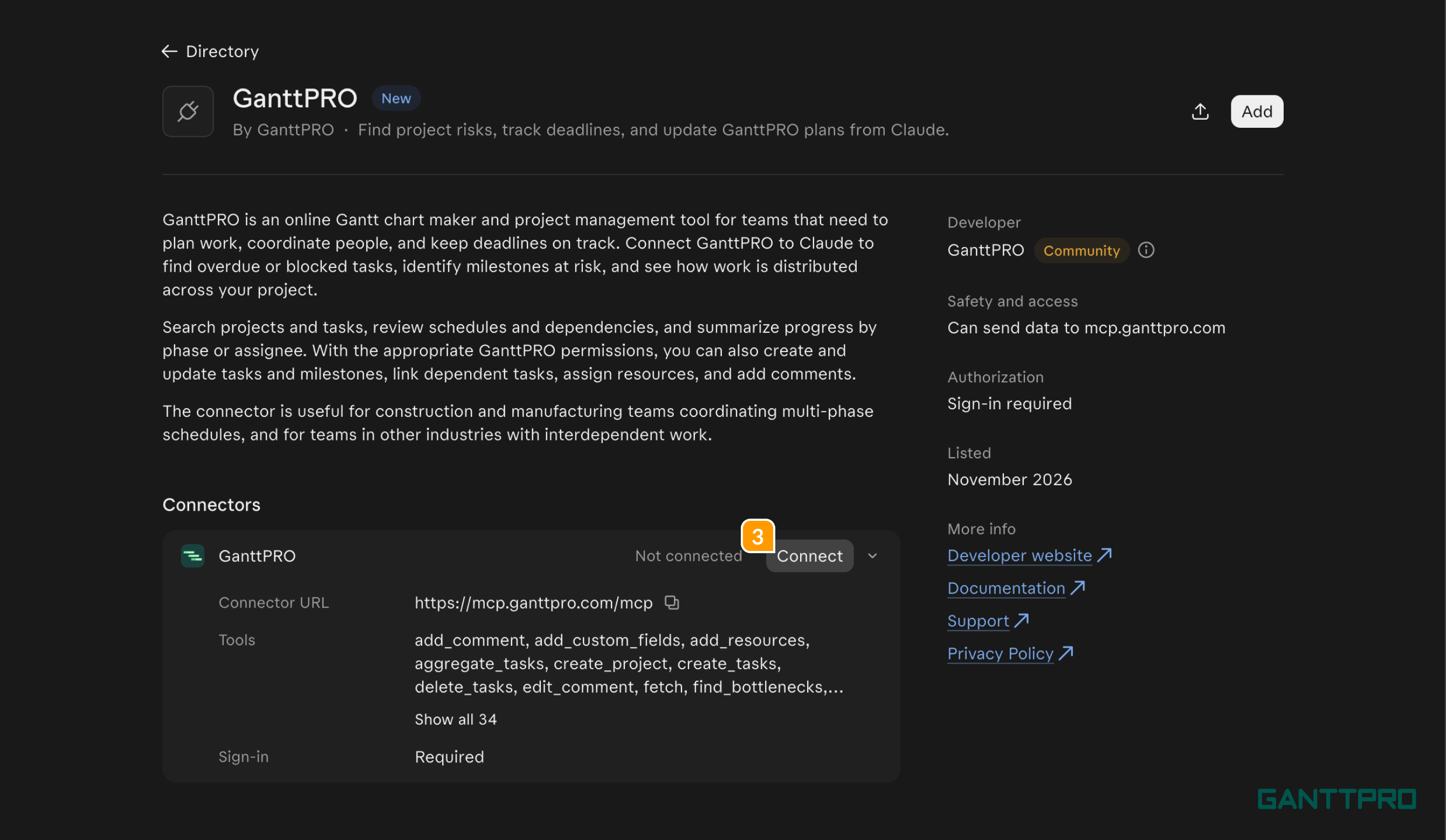
Under Discover, find GanttPRO and click Connect 3;
Sign in to GanttPRO and approve access.
Connectors you add in Claude on the web also work in the Claude desktop app, as long as you’re signed in with the same account. You can also use Clause Code for connecting.
Connect to ChatGPT
Note: In ChatGPT on Business and Enterprise workspaces, an admin may need to allow custom MCP servers first.
In ChatGPT, open Plugins, click +, and choose Add custom MCP server.
Name it GanttPRO, paste the server URL https://mcp.ganttpro.com/mcp, and choose OAuth for authentication.
Confirm, click Create as a plugin, then sign in to GanttPRO and approve access.
In a chat, pick GanttPRO from the + menu.
Connect to other assistants
Any other assistant that supports MCP connectors works with GanttPRO the same way.
In your assistant, open the settings for connectors or MCP servers.
Add a custom connector and name it GanttPRO.
Paste the server URL https://mcp.ganttpro.com/mcp and choose OAuth for sign-in. No API key is needed.
Sign in to GanttPRO, choose your team, and approve access.
The exact names of settings and buttons vary between assistants. If you can’t find them, check your assistant’s help center for how to add a custom MCP connector.
Start using GanttPRO in a chat
Turn GanttPRO on in a chat and ask about your projects, for example: What’s overdue in the Website Redesign project?
What happens when you ask a question:
The assistant gets the latest data from GanttPRO.
It answers based on what’s in your projects right now.
If you ask it to change something, the update appears in GanttPRO for your whole team right away.
The assistant works only with your team’s data and does only what your team’s limits allow. It doesn’t store copies of your data or sync anything in the background. Every answer is based on what’s in GanttPRO right now.
Team limits for AI assistants
The team owner decides what AI assistants can do in GanttPRO. Anyone whose account role includes All account projects permission can decide this too. They can allow assistants to only view data, or to make changes as well.
These limits apply on top of everything else. An assistant connected by any team member can never do more than is switched on here, whatever that person’s role allows.